
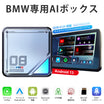
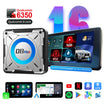
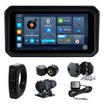
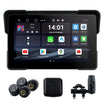
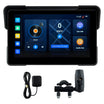
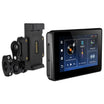
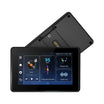
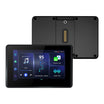
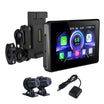
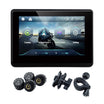
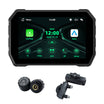
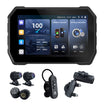
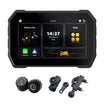
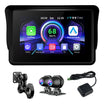
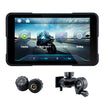
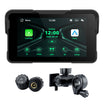
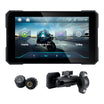
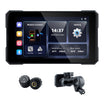
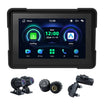
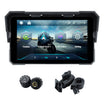
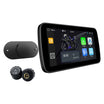
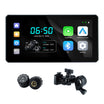
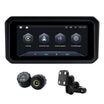
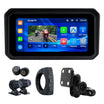
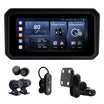
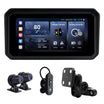
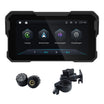
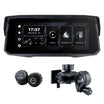
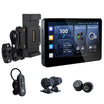
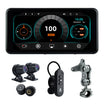
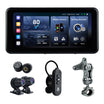
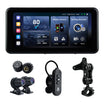
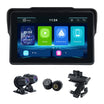
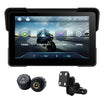
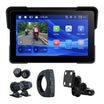
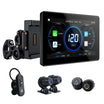
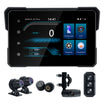
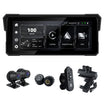
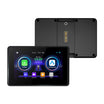
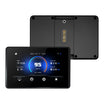
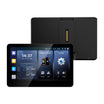
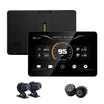
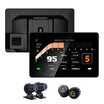
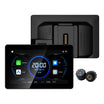
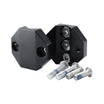
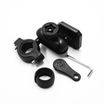
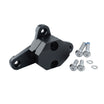
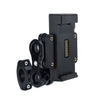
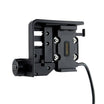
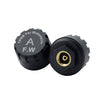
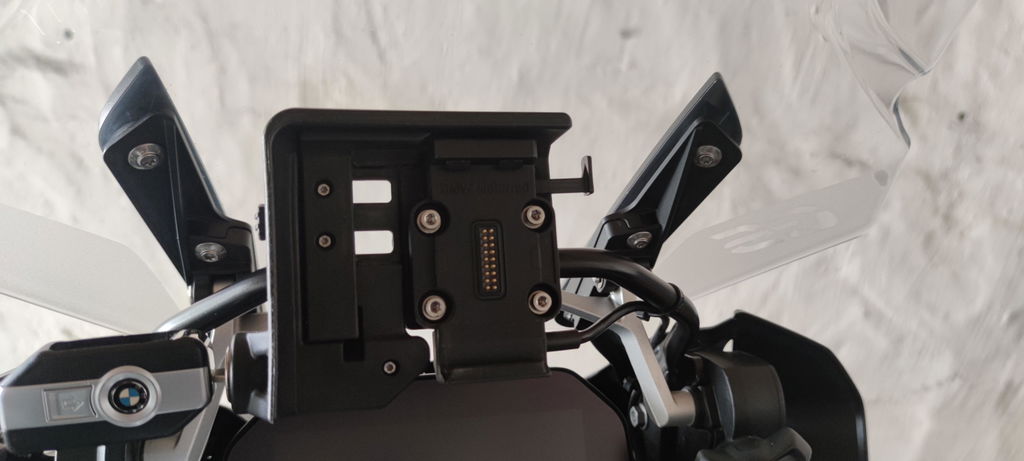
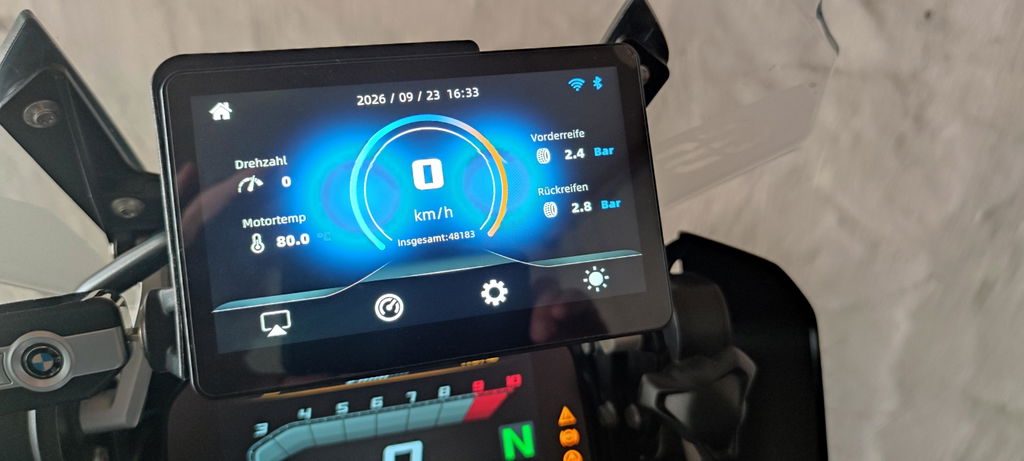
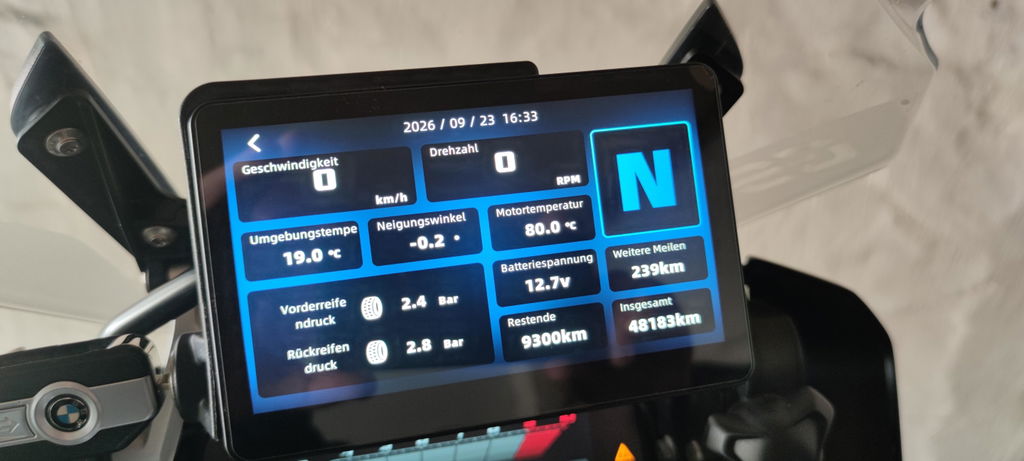
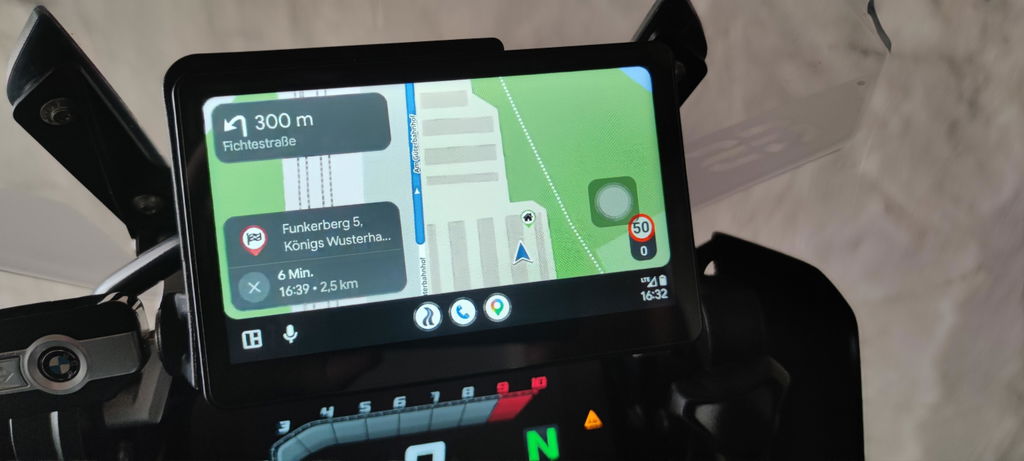
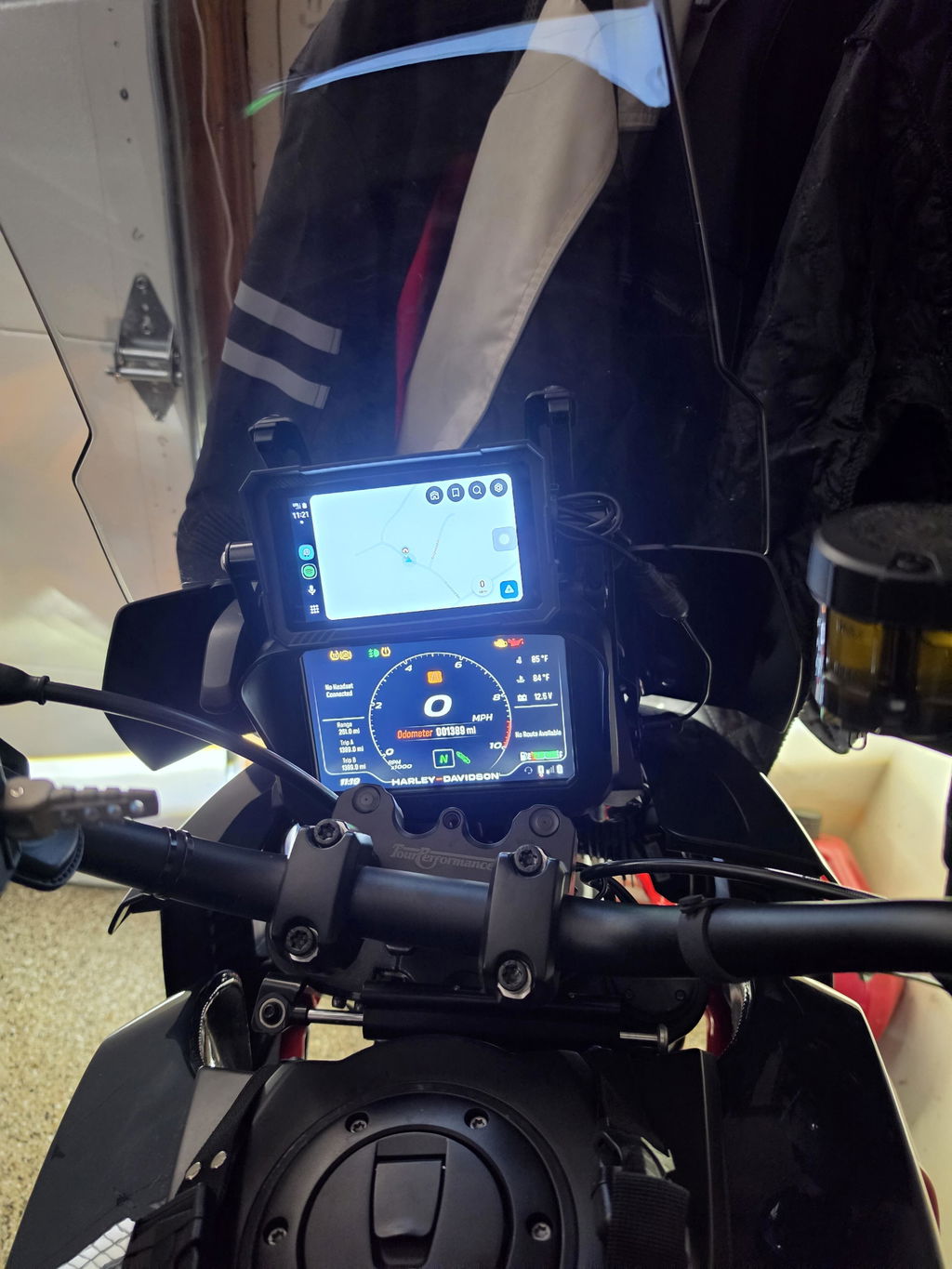
Meine Bestellung wurde schnell bearbeitet und kam bereits vor dem zugesicherten Liefertermin an. Das Gerätes passt perfekt in die Originalhalterung meiner R1250GS, ließ sich einfach in Betrieb nehmen und alle Funktionen lassen sich per Wonder Wheel sehr gut bedienen.
Das Smartphone ließ sich problemlos über Android Auto verbinden, die Kurviger App funktionierten im Test einwandfrei.
Nachdem ich bei Amazon nicht fündig geworden bin, habe ich den Linkifun Support kontaktiert, um noch einen zweiten Displayschutz zu kaufen. Es erfolgte eine sehr schnelle Rückmeldung und mit der Übernahme der Versandkosten durch mich wurden mir 2 Displayschutz kostenfrei zugeschickt.
Das Linkifun MT13 Pro ist aus meiner Sicht eine preisgünstige Alternative zum BMW Motorrad Connected Ride Smartphone Cradle. Über die Mirrorfunktion kann auch die BMW Connected App auf dem Display angezeigt, jedoch nicht gesteuert werden.
Excelente. Se agradece que esté incluído en el paquete.
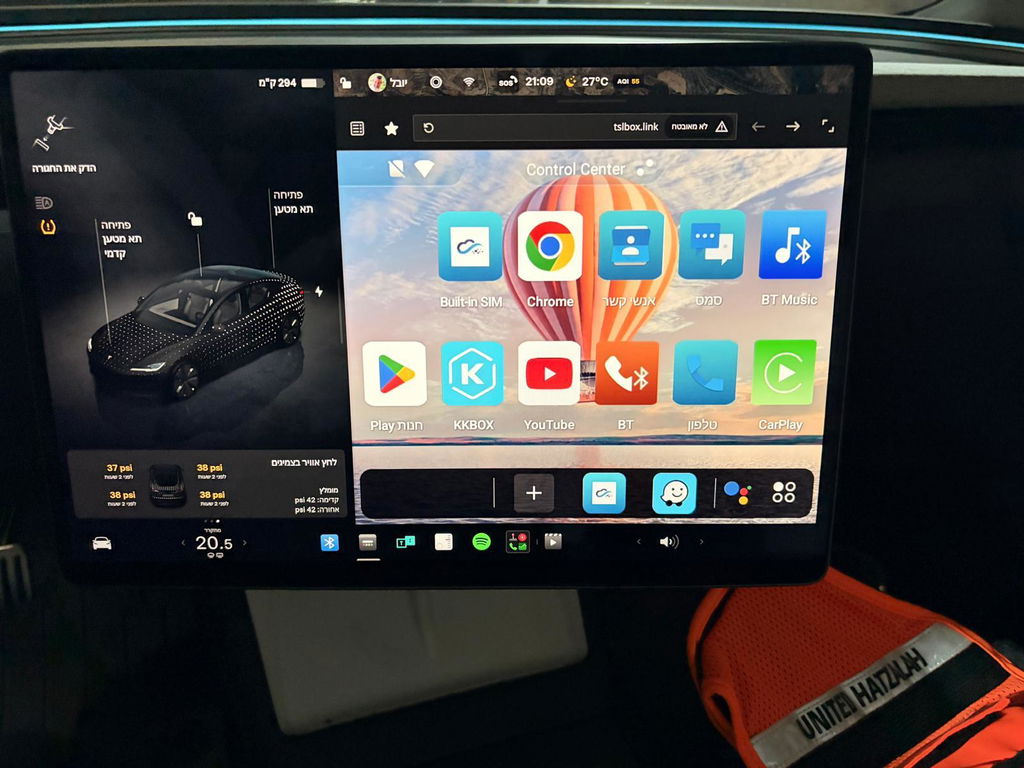
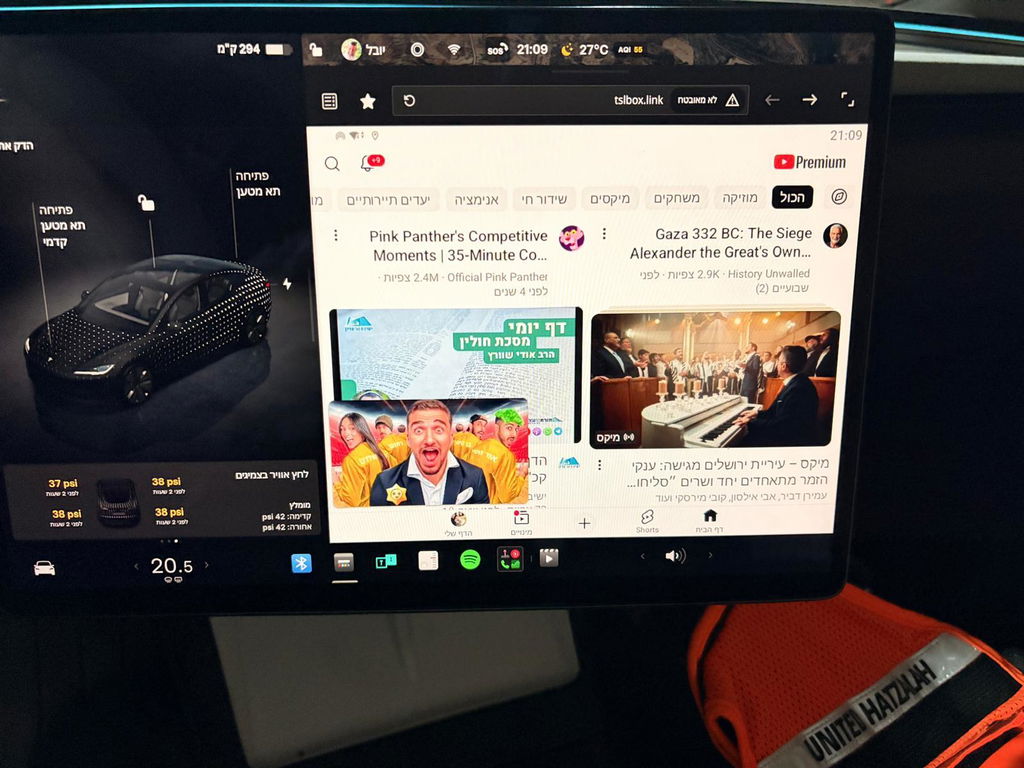
I would like to point out that the device is excellent, works as it should, and you can run Android software on the Tesla, as well as watch YouTube, CarPlay or Android Auto, and many other apps. I should also mention their support service, which answered every question I had quickly, and did not leave me until all the problems were resolved and everything worked smoothly.
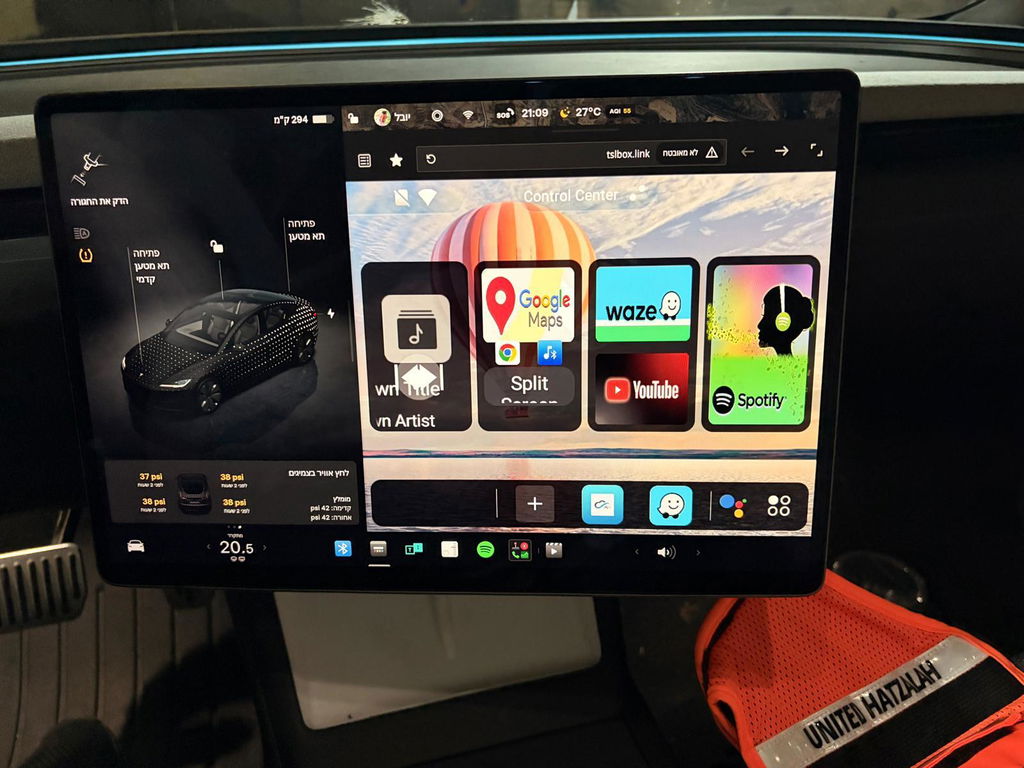
Excelente pantalla. Para mis necesidades de viaje es perfecta. La posibilidad de usar una tarjeta SIM e independizar la pantalla del teléfono es lo mejor, de hecho es la razón principal por la que la compré. Lo único que no me gusta es que el cable para conectar la pantalla con el GPS es más delgado que los demás y se siente un poco frágil. Además, aunque el uso de la pantalla es muy intuitivo, no estaría nada mal tener un manual en español. Por lo demás, prestaciones, accesorios y precio es una pantalla excelente.
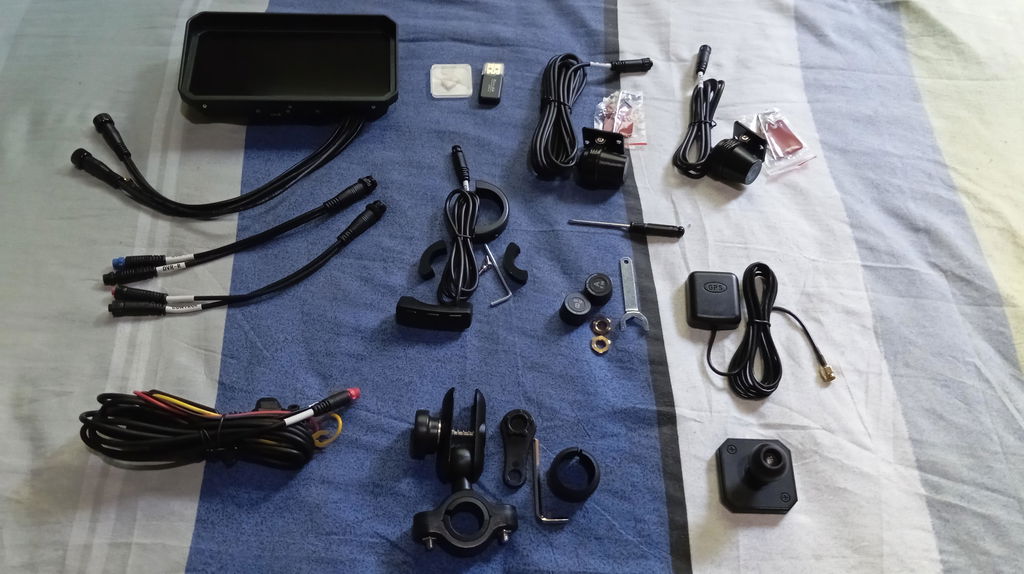
Only one out there that allows connection to usb port in addition to direct connection to battery. The display is clear and Android auto connection is seamless. Only suggestion i have is to make sure you purchase a usb-A to usb-C adapter if your bike only has usb-C ports. Overall this is a great product that adds a lot of functionality to my bike.
I bought this product because I was looking for a device that natively ran that ran MyRoute App planning and navigation application suite. I live in the UK but ride a motorcycle all over Central and Western Europe and was looking for an alternative navigation device to my Garmin Zumo XT which always insists on altering routes from that planned. To a motorcyclist the route to be followed is at least as important as the destination, if not more so. The Garmin is always a fight to get it to follow the pre-planned route even when it is a track!
So, I was looking for a navigation device that did not involve my smart phone. After some research I found the Linkifun website and ordered the MT21. It was delivered quickly and well packaged, the only hiccup being they are limited to delivering to the UK mainland and not the extremities so alternatives may be needed depending where you live. The device is solidly made, comes with all the parts described including the very useful free add-ons of a microSD card and USB (A) microSD card holder for PC connection.
The device runs one of the later versions of the Android operating system and once logged into a Google account has full access to the Google store, providing access to the full range of Android compatible applications. I tried Car Play and that works really well.
The internet connection works very well, at least on WiFi 5, I have not tried the later variants
I haven't any experience of the other pre-installed applications or any other downloadable apps. As I said above I wanted this to run MyRoute app and that downloaded and ran without any problems at all. Once I logged in to MyRoute app it immediately had access to all my existing routes and favourites. As long as you either have off-line maps downloaded or are prepared to use a phone as an internet connection then the navigation features all work faultlessly.
The screen brightness is perfect and the ability for it to change to a night mode automatically is very helpful.
Now for the negative side of my experience.
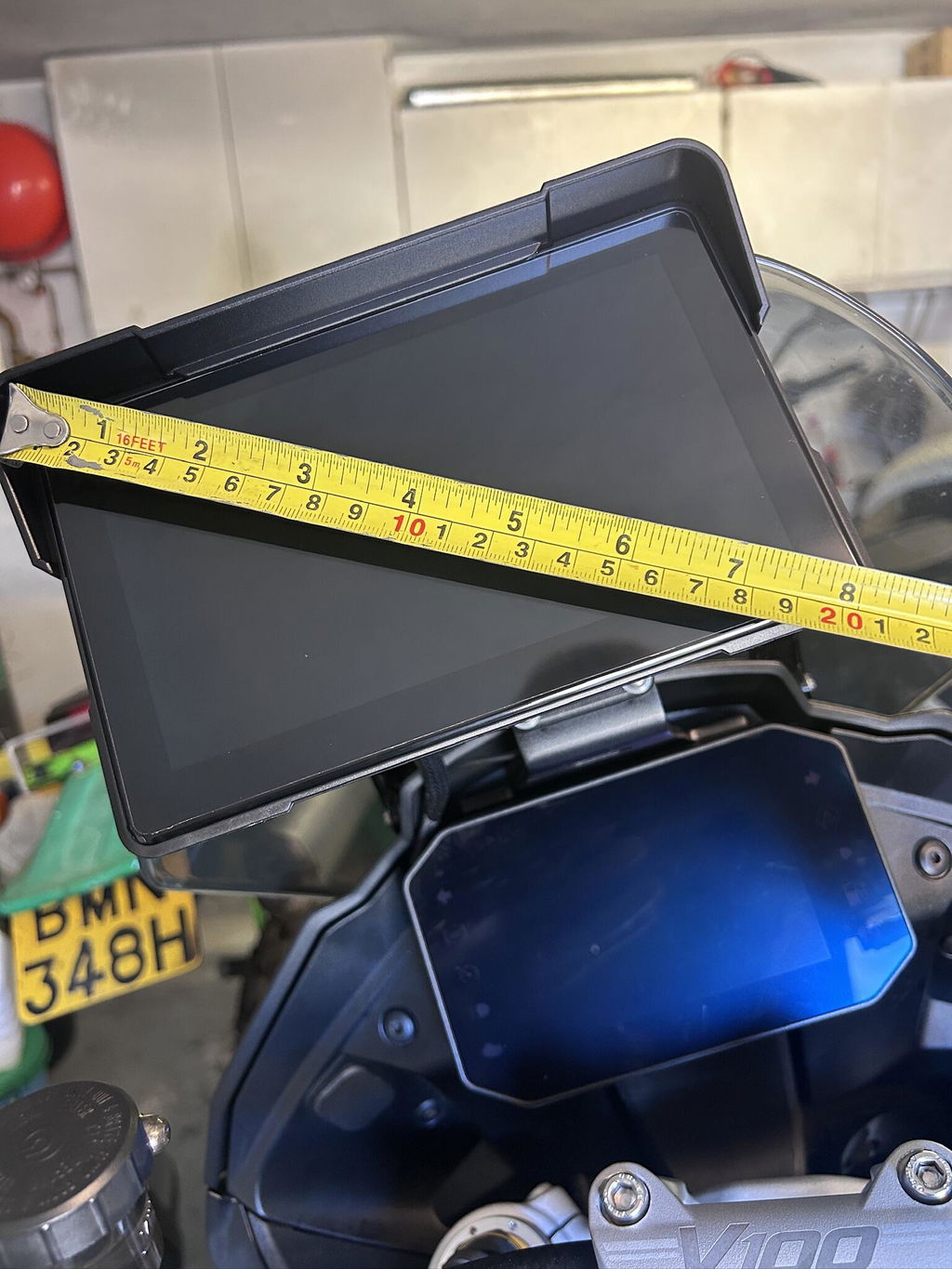
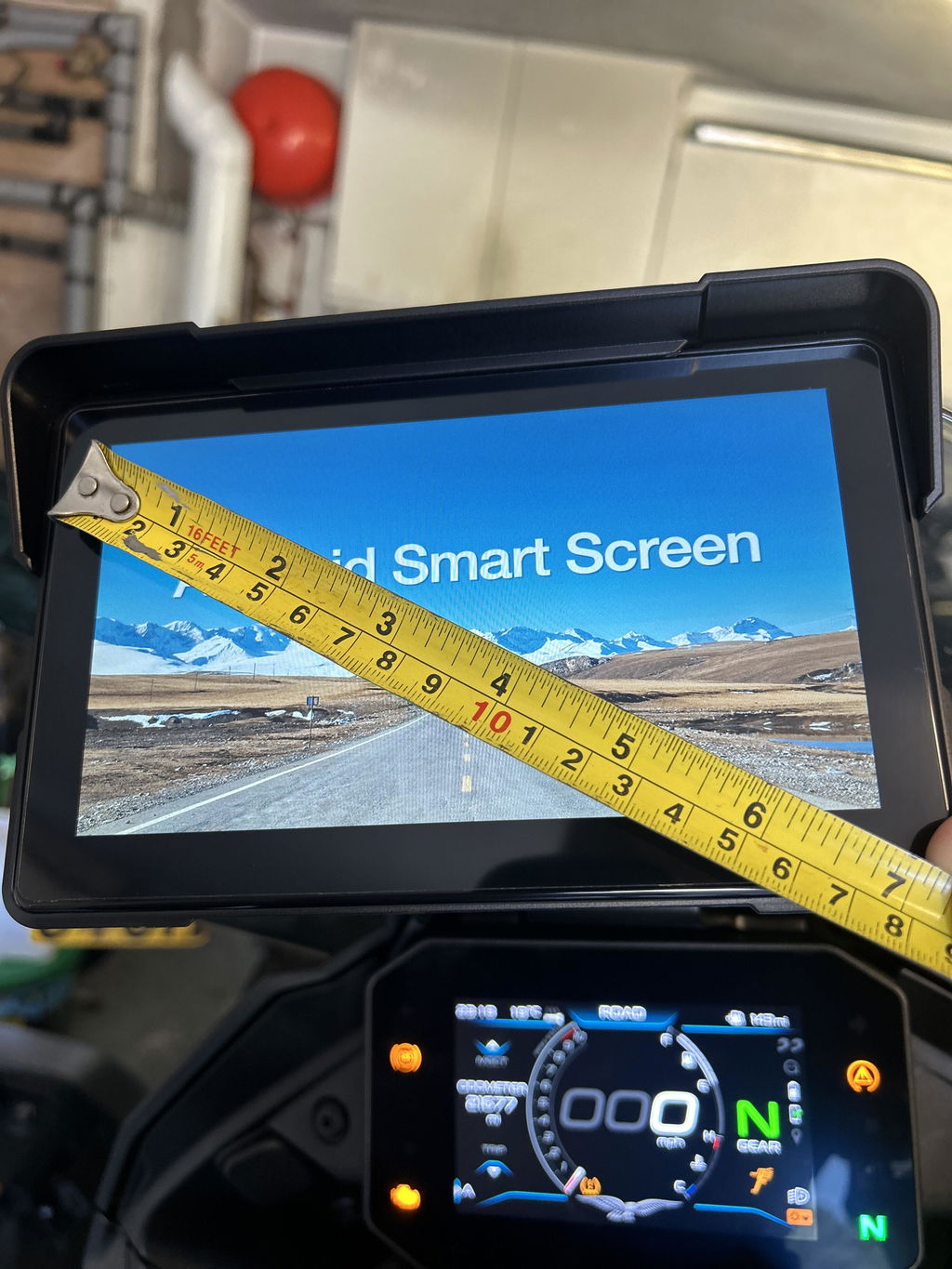
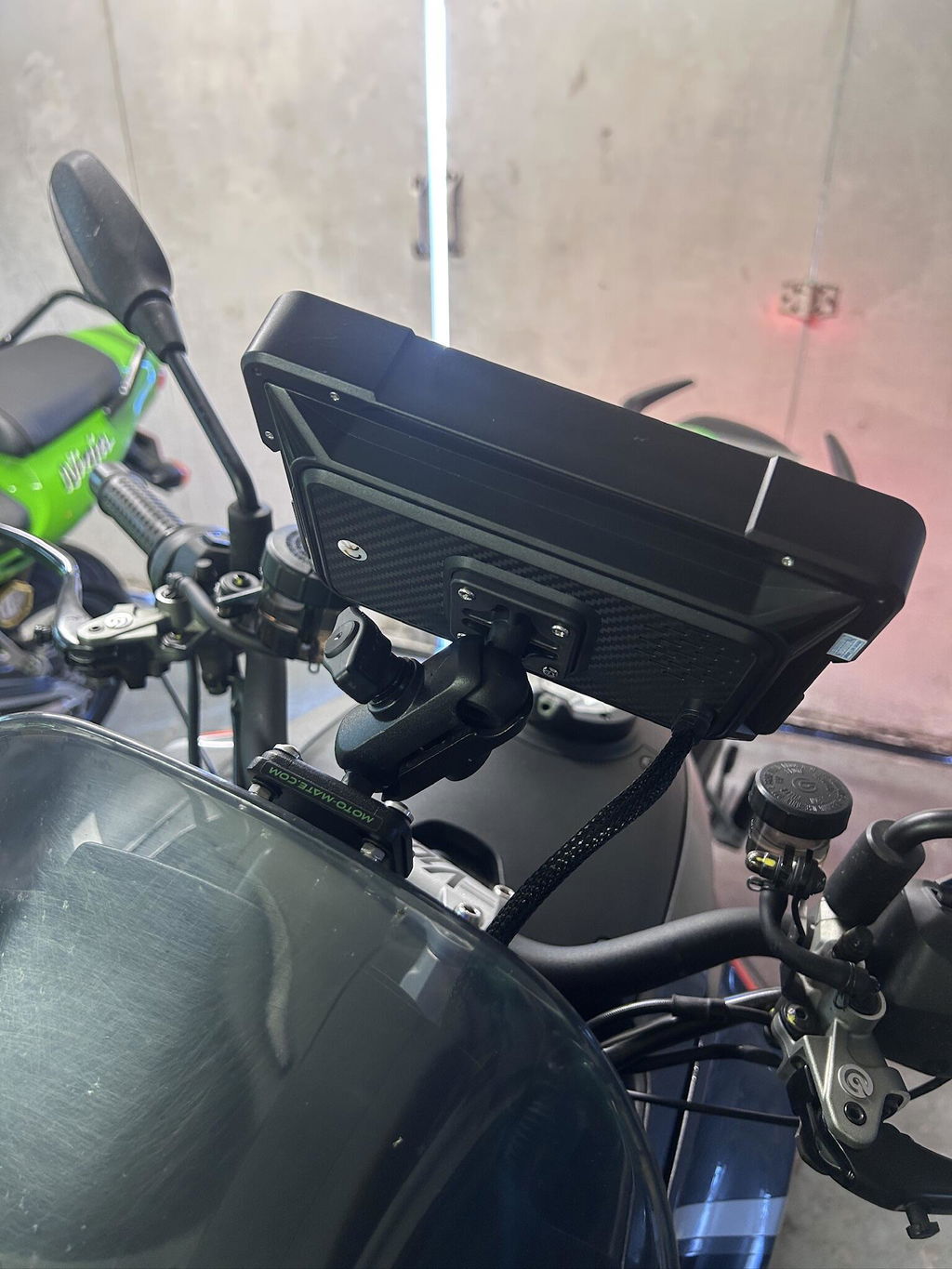
The unit is big! I know it says 7" but that refers to the visible screen, there is a border around the screen and the overall devices is 8" diagonally. It comes pre-fitted with a 1" RAM ball for mounting which due to the unit's size seriously limits possible mounting positions so it doesn't obscure any part of the motorcycle standard instrumentation.
It should be possible to power the device via its built-in USB (C) port, the specifications say 5v and 3 amps is required, but I couldn't get this to work as the device stuck on the Android splash screen. It also requires the cover over the USB port and microSD card to be left off if this is the planned way of using the device. Otherwise for use off the motorcycle you access to a 12v power source.
The device is delivered with all the cables needed, and they are definitely long enough with good quality connectors. The unit is specified to be permanently connected to the battery with a 3rd lead that connects to somewhere after the ignition which then starts the device when the ignition is turned on and causes the unit to shutdown when the ignition is turned off. The only strange behaviour is that if the power lead is disconnected from the unit and then re-connected, the device starts up irrespective of the ignition position. This is frustrating. It means that if you do dismount the device for overnight hotel stops you have to undo the mount and disconnect the power and GPS connectors. Re-connecting everything the following morning then means the unit powers up before you are necessarily ready to leave.
I note that though the item description says "built-in GPS" it does come with an external GPS aerial and long lead that needs to be connected to the device for the GPS to work.
The unit also takes around 30 seconds from being turned on to being ready to use, which tends to mean either waiting with the ignition on, or not operating until on the move! Also if you have a motorcycle that takes a big electrical effort to crank the engine the unit can switch off and then start up again once the voltage comes back up.
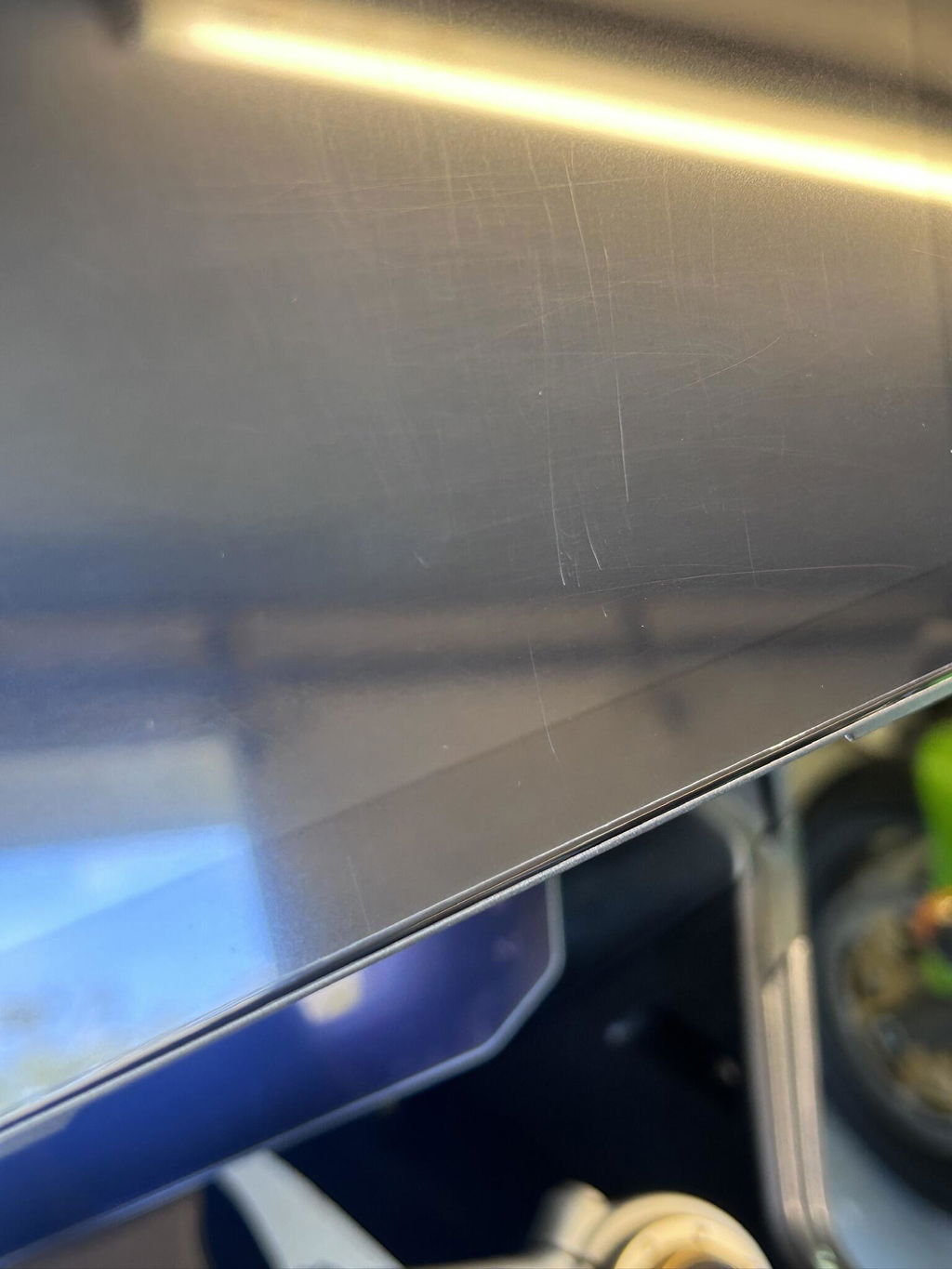
The touch screen is sensitive and can be used with motorcycle gloves but the screen as delivered is very 'soft'. Mine has scratched quite badly after just a few days use. It is not hindering visibility at the moment but I am reluctant to try and polish these out as it may make the problem worse.
The last challenge I have may be a combination of the Linkifun and MyRoute app but the offline maps take an age to download. The download appears to run at around 0.083 Mbytes per second which is well below my internet connection which is around 10 Mbytes per second.
Le daría 5 estrellas por qué en parte lo merece no lo hago por qué no me gusta el sistema de conexión del cableado a la pantalla para ser un sistema de desmontaje rápido debería de ser un sistema de base con pines
Ahora bien el sistema es rápido y fluido el táctil funciona muy bien tener tarjeta SIM es lo que me gusta también que sea android puro y poder instalar las app preferidas se debería poder configurar el zum y el tamaño de las letras en pantalla puede verse algo pequeñas las letras
Hi,
Thank you very much for your detailed feedback.
We are glad to hear that you like the speed, smooth performance, touchscreen response, SIM card function, pure Android system, and the ability to install your preferred apps. We truly appreciate your recognition of these features.
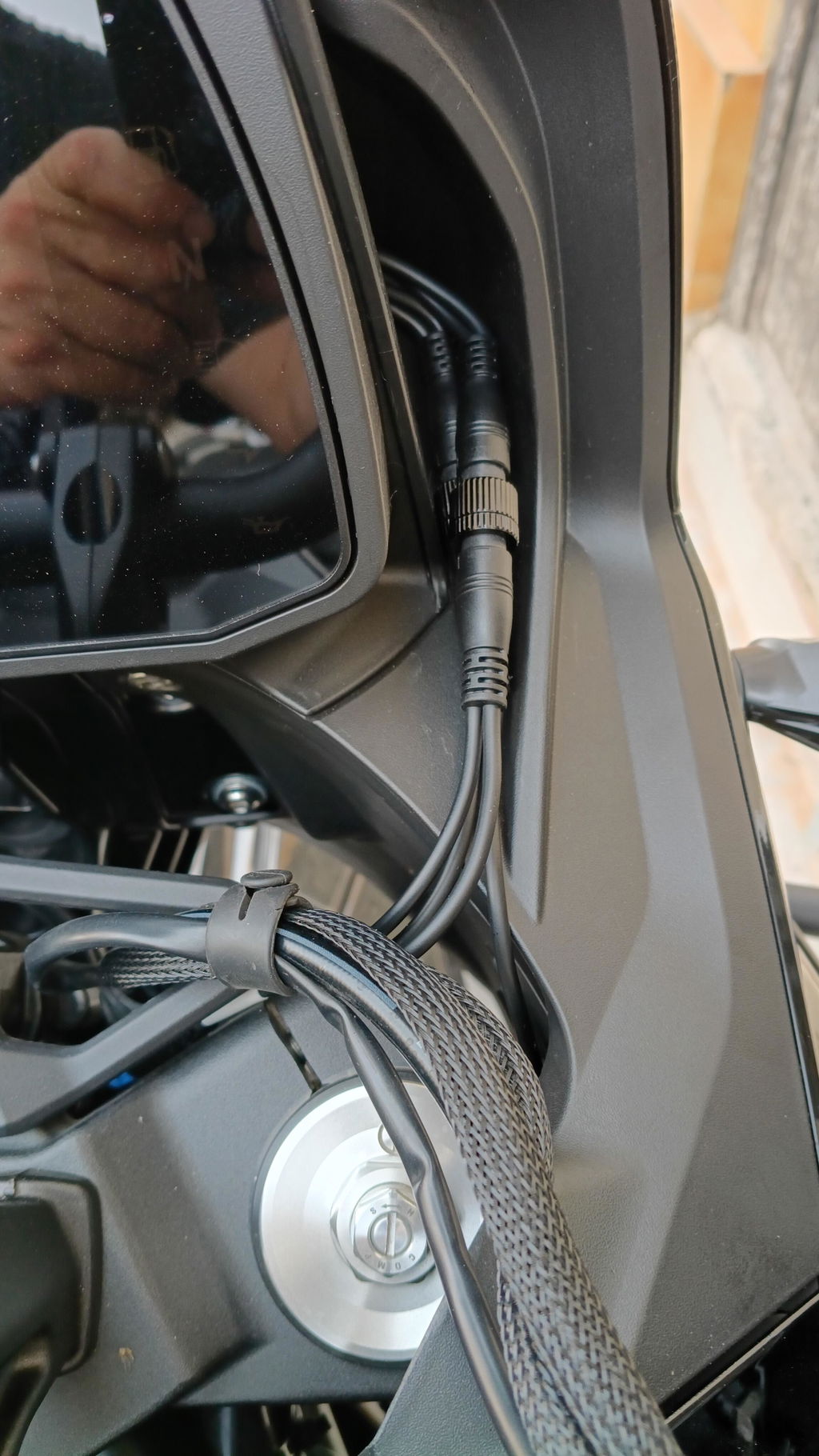
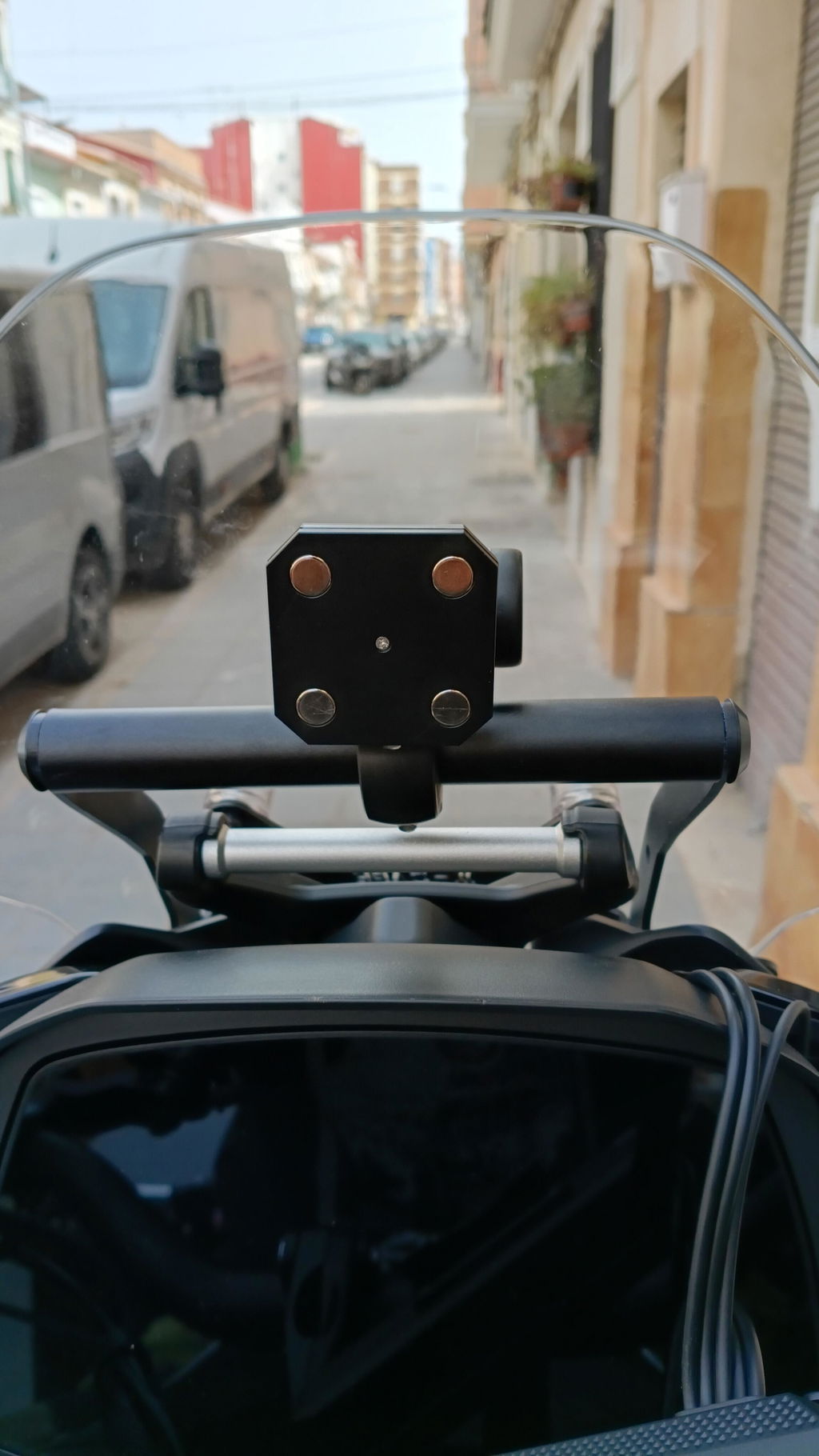
Regarding the cable connection design of the MT23, due to the current mold and hardware design, the screen needs to be connected with the power cable, DVR cable, and GPS cable. Therefore, it is not designed as a completely cable-free quick-release base with pins.
If you prefer a fully quick-release design without repeatedly disconnecting multiple cables, you may consider our MT3C / MT3D with bracket models. These models use a more complete quick-release bracket design. However, please note that they are currently only available with a 5-inch screen.
Regarding the font size and display zoom settings, our product is positioned as a motorcycle/car entertainment system, which is different from a regular phone or tablet. Due to the complexity of the underlying Android system code, the device currently does not support changing the system font size or display zoom.
We truly appreciate your suggestions. We will forward your feedback to our product and engineering team for future improvement consideration.
Thank you again for your support and honest feedback.
Best regards,
Linkifun Support Team
Après quelques problèmes dus à la mauvaise réception des satellites , problèmes résolus grâce à l'aide et aux directives du support Linkifun (très efficace ,merci à eux) j'ai pu monter mon MT3c sur ma moto , une Fjr 1300. Comme le support par boule ne me convenait pas , j'ai scié puis limé celui-ci , j'ai ensuite percé 2 trous dans ce support afin de le fixer sur le support que j'avais déjà monté pour fixer mon Garmin Zumo XT (les photos jointes sont plus explicites).L'ensemble fixé ainsi est bien à hauteur des yeux sans gêner la vision des compteurs . De plus , grâce à un adaptateur , je peux éventuellement me servir quand même de mon Zumo sans changer quoi que ce soit.
Au sujet de mon MT3c , il est vrai que c'est plutôt petit , surtout que c'est peut-être un 5 pouces mais ,comme la barre de boutons reste toujours à gauche, on a en fait un 4,5 pouce (j'ai mesuré) , j'utilise le logiciel de navigation Sygic (aussi bien en online qu'en offline) , et ça fait vraiment petit pour "lire" la carte , heureusement que , avec mon montage, l'appareil est à hauteur et pas loin des yeux.
Le MT3c en lui-même est agréable à utiliser ,polyvalent , son gros atout étant la possibilité de s'en servir sans connexion avec le smartphone , c'est ce que je voulais , tout en pouvant s'en servir comme un écran classique de Carplay ou Android auto , la combinaison des deux est génial et rassurante.
Le tout s'avère efficace et complet , il faut un temps d'adaptation pour maîtriser les nombreuses fonctionnalités.
Dans les reproches ,je peux citer une perte Gps pendant une dizaine de minutes en roulant (par 2 fois ) , un écran tactile pas facile à maîtriser avec des gants (pourtant prévus pour) ,il faut tapoter plusieurs fois pour déclencher la fonction voulue , ce n'est pas facile ni sécuritaire en roulant.
Mais vu l'agrément réel de ce MT3c , je rêve de la même configuration ,logiciel , possibilités , fonctions , même support donc amovible ,etc .. mais avec un écran du style MT13 donc en 6,2 pouces , peut-être que Linkifun va le faire ?
Excellent display resolution.
It doesn't drain the phone's battery or overheat.
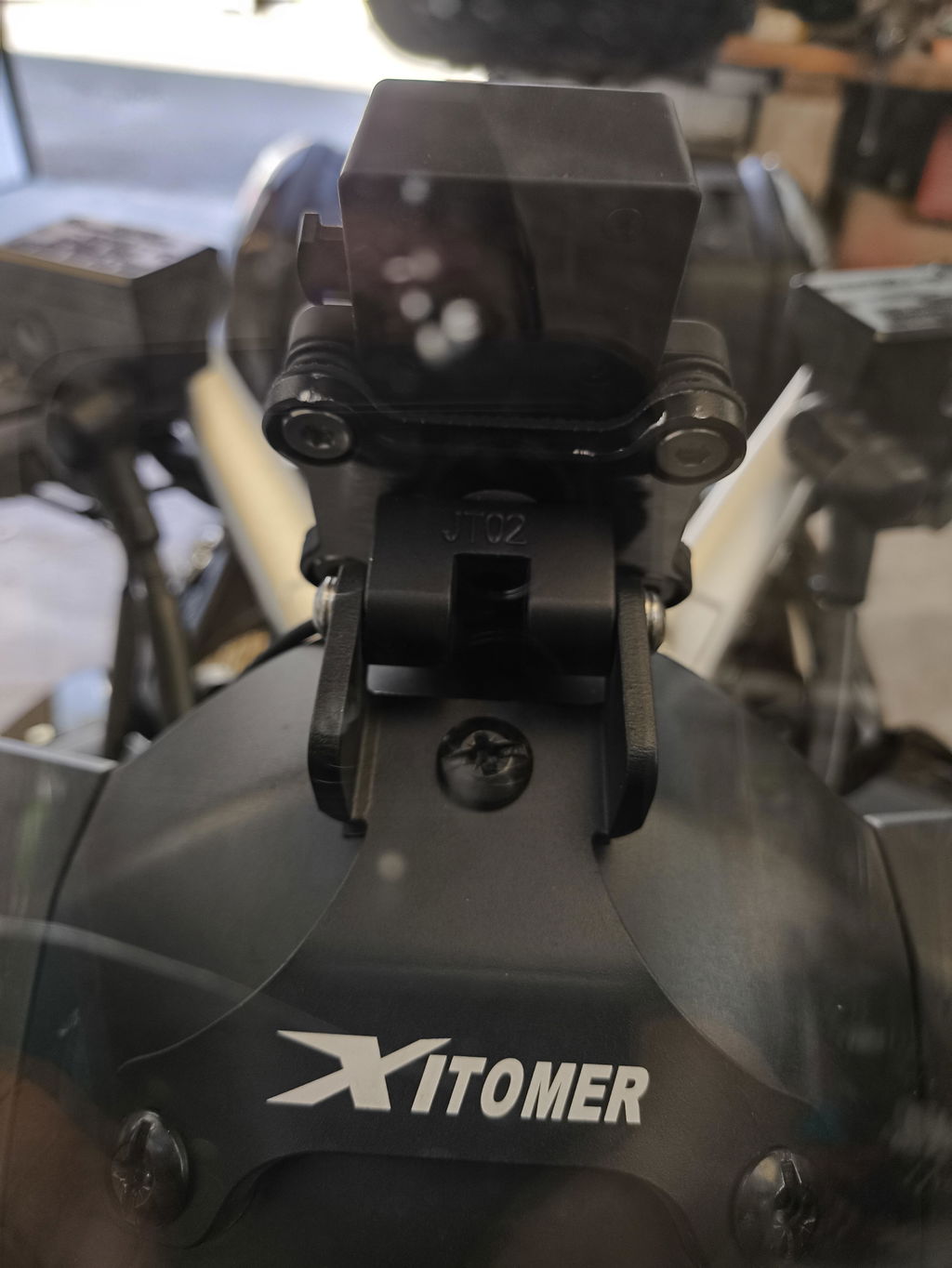
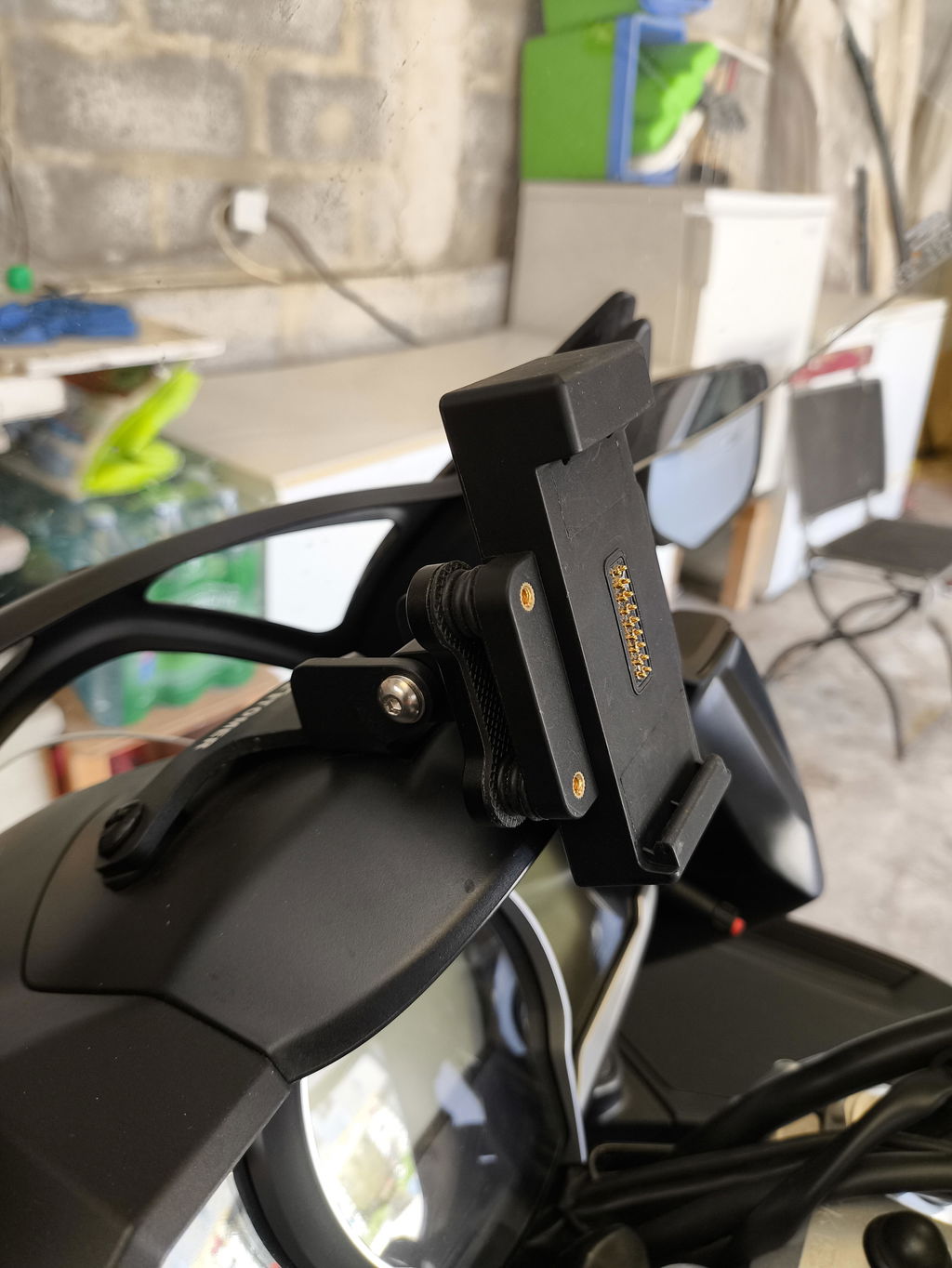
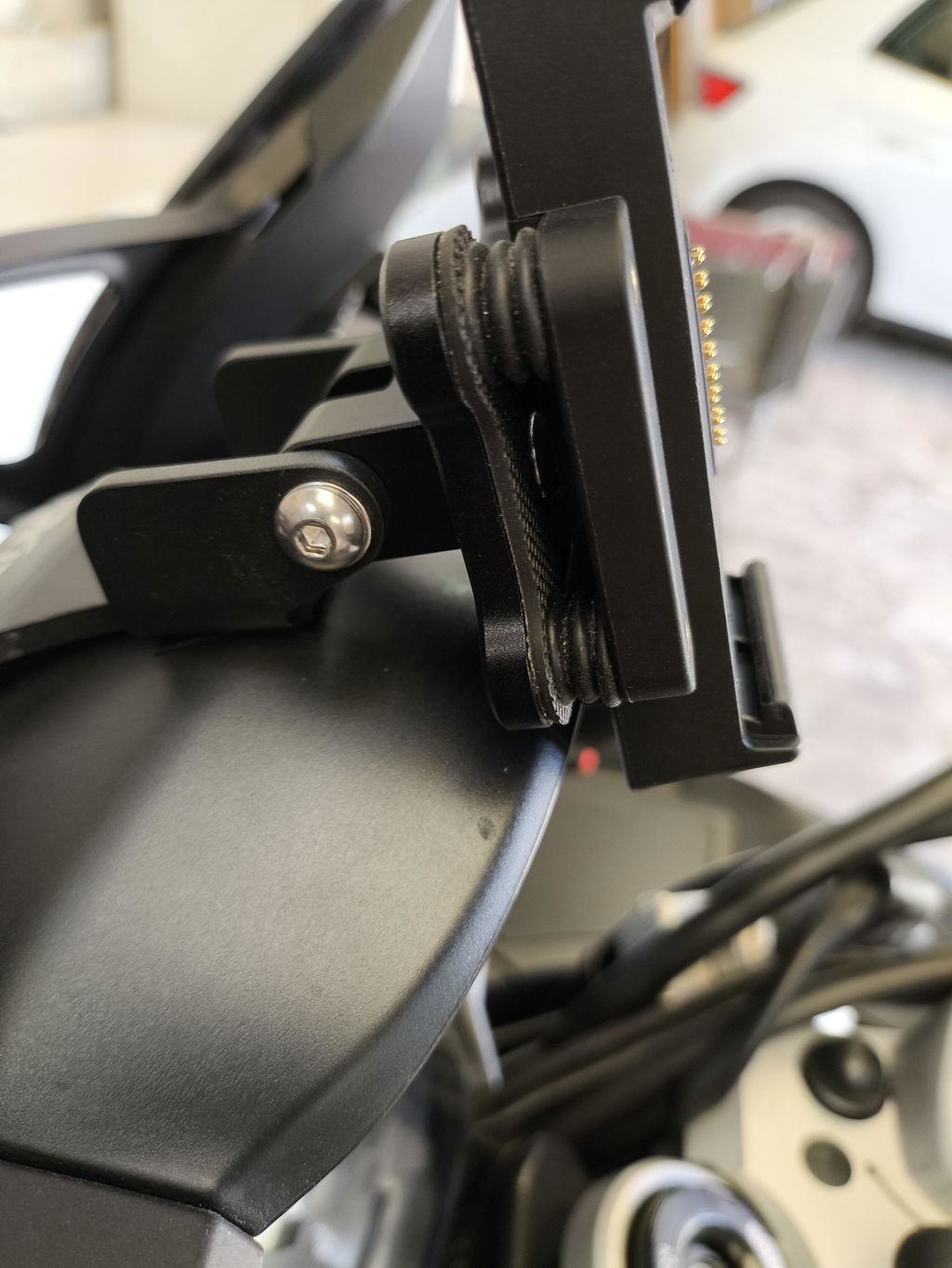
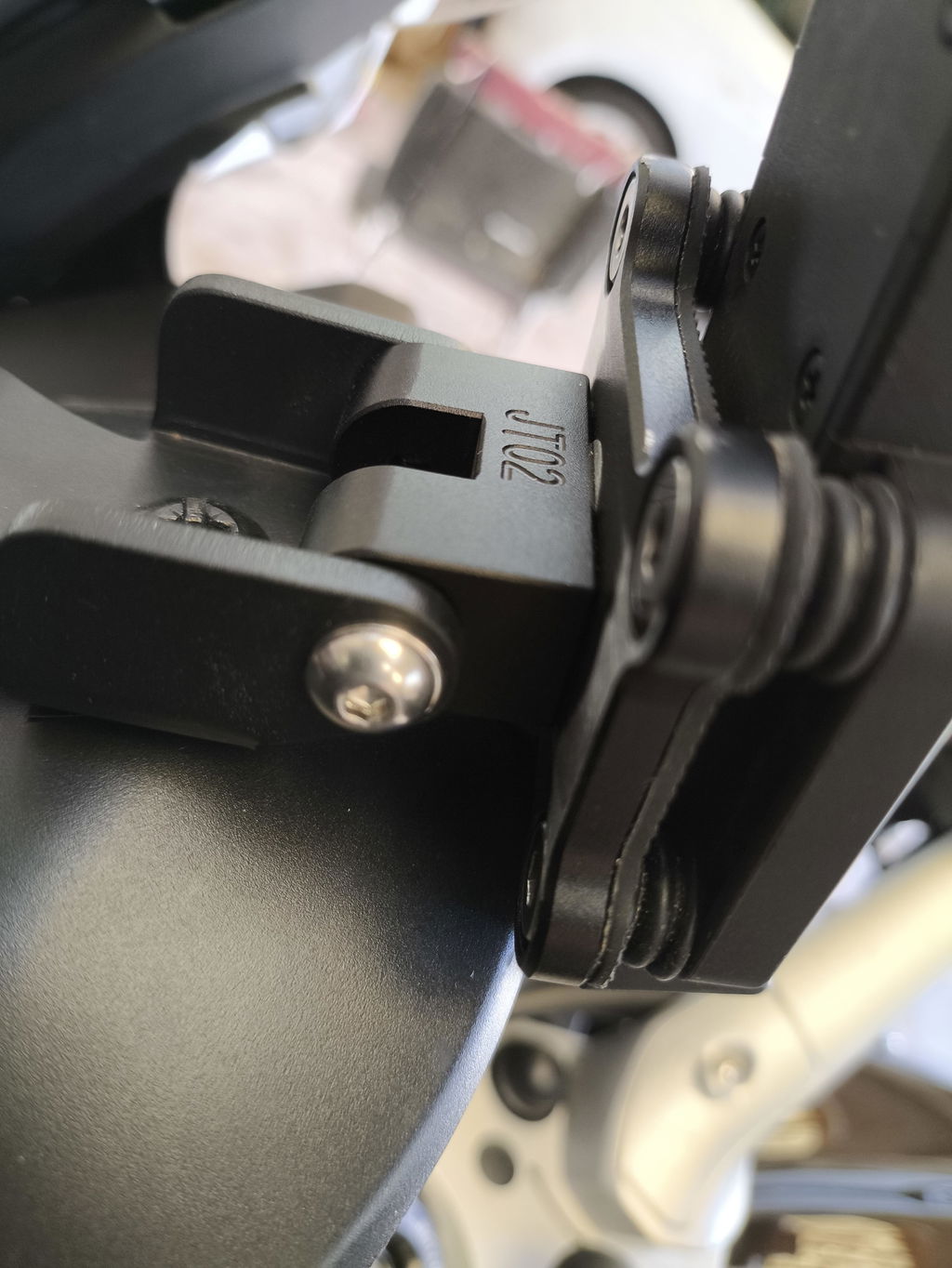
It also has a remarkable quick-release system and is equipped with a vibration dampening system.
I have a Honda NC750X, which has the vibrations typical of twin-cylinder engines, but the dampening system works excellently.
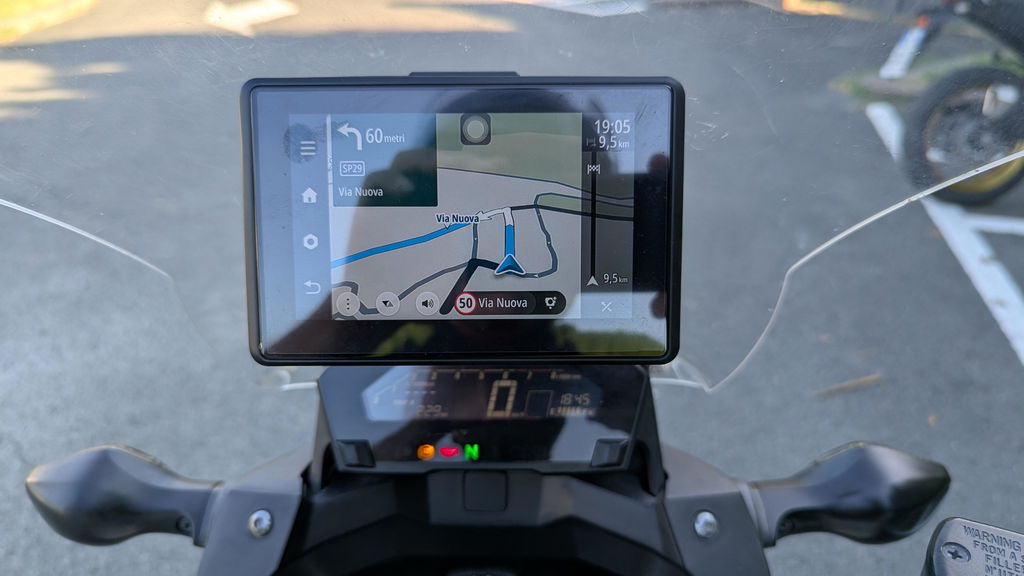
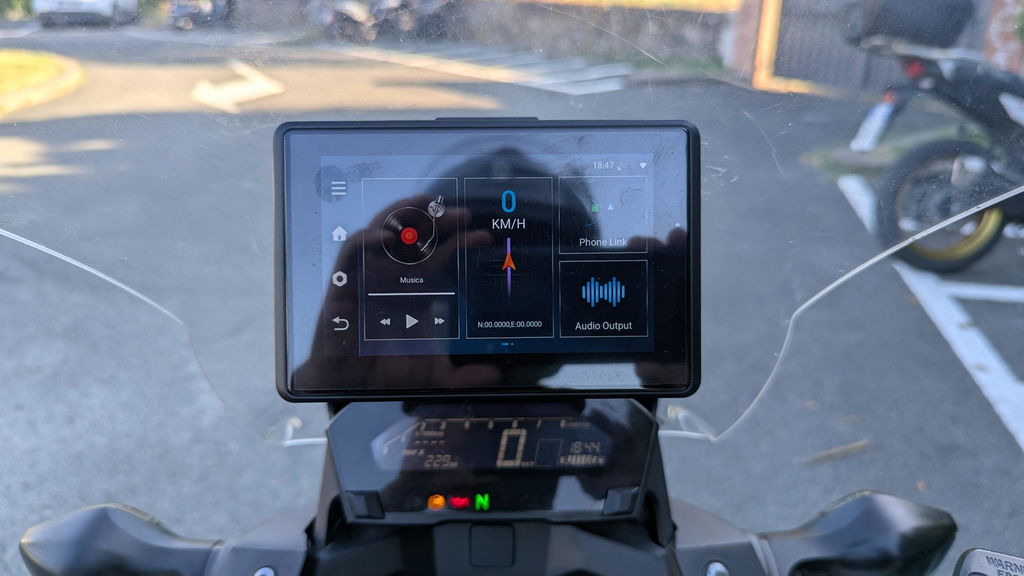
Everything is perfect, but why can't I hide the Android sidebar?
Even the Android setting that allows you to hide it has been deliberately hidden.
I understand it's for safety reasons, but when I ride my motorcycle, I only look at the road.
Furthermore, the floating window view command already exists.
The result is that the navigation maps are off-center to the right.
It would be enough to add a warning like 'Warning, hide the bar...'
Furthermore, the sidebar can't even be moved down.
The fact remains that this is truly a perfect product.
There are few, and very expensive, ones on the market.
I hope a software update fixes the problem.
Five stars, well deserved.
It is truly an awesome device and it works very well, no more cable connection nightmare!